How leads from your website and personal interactions come into RealHub365, how they’re routed and claimed, and how to bring your existing database with you. Paid lead sources are covered in Integrations.
All new leads and existing contacts live in the Contacts section. It’s designed so you can understand a contact at a glance and take quick action to engage.
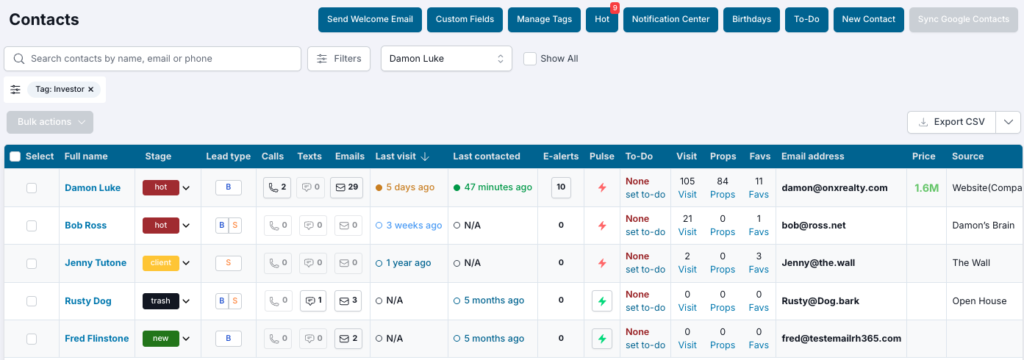
Here’s what you can do from the dashboard:
Create optional and required fields — text, dates, and radio buttons — that appear in the Edit Profile view of a contact record.
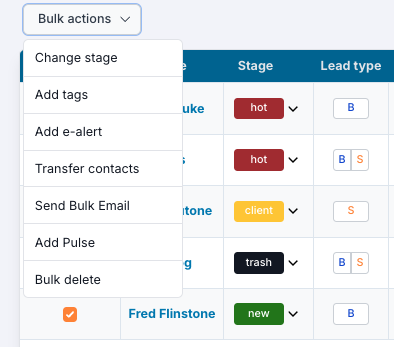
Filter your contacts by tag, then take quick action with the Bulk Actions dropdown. There’s no limit on the number of tags, and existing tags from other platforms can be imported to keep things consistent.
Alerts you to high-priority activity in your database so you can engage with insight. It tells you when a contact:
Shows the specific properties a contact is interested in, and lets you know when a contact has sent you an email or text message.
A standard field in every contact profile. You’re notified on the contact’s birthday, and the birthday area shows all birthdays in the upcoming, rolling two weeks.
All tasks you create, manually or from a drip campaign, appear here. Mark them complete to remove them from the list and log them to the contact record.
Add a contact manually with this form; web leads are created automatically. A new lead needs a first name, last name, and a phone number and/or email. To send a welcome email to one contact, use the Welcome Email button and select just that contact.
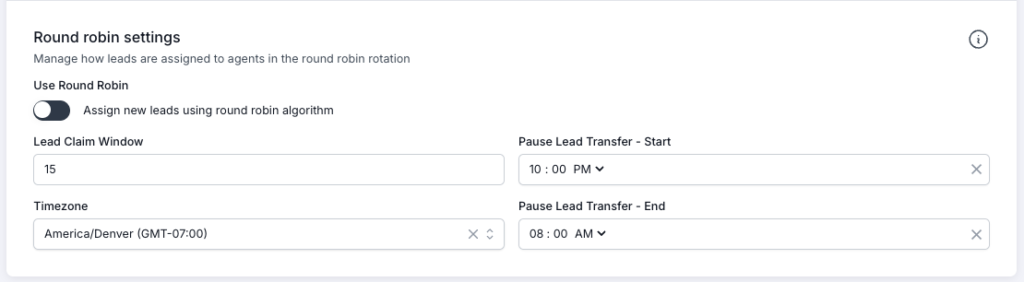
On a team, you may receive leads via Round Robin, which gives you a limited time to claim a lead before it transfers to another team member. Your admin decides whether your team uses Round Robin, sets the claim window, and can set a pause window when transfers stop.
The claim window is 20 minutes and the pause window runs 10pm–8am. A lead that arrives at 6am is assigned at random to a team member. If it isn’t claimed, it won’t transfer until 8:20am.
Any of these actions claims a new lead:
Leads from a lead generation service may arrive already assigned to an agent. Round Robin doesn’t change that assignment.
Existing leads from another platform can be imported into RealHub365 by CSV file. Your rep will guide you through preparing the file and make final adjustments so it imports successfully. You can import during onboarding, before going live, or any time after.
Before going live, send emails from your current platform letting clients and contacts know you’re moving to a system that will better serve their real estate needs. They’ll be ready to register on your new site to access properties, create searches and e-alerts, and use the tools you offer.
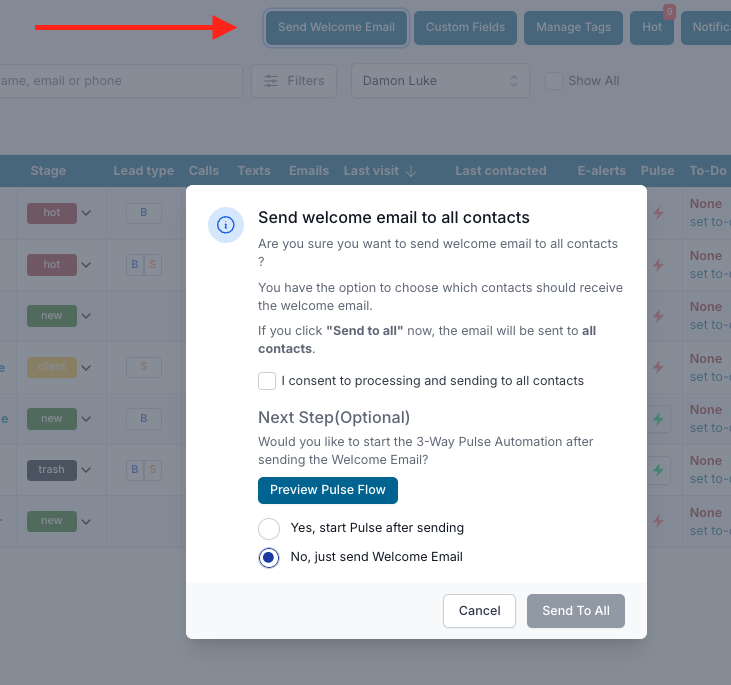
Once your domain points to your new website, go to the CRM and click Send Welcome Email at the top left of the Contact Dashboard.
Choose Yes to enroll everyone receiving the welcome email in a Pulse drip campaign designed to get leads engaging with your site.
To select in bulk, click the box next to Select.
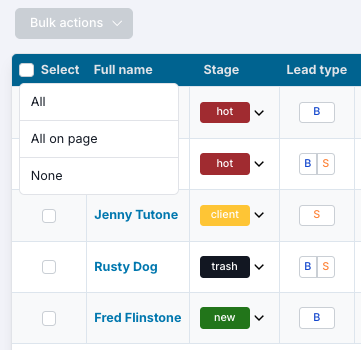
Or select a single record by clicking the box next to the contact’s name.
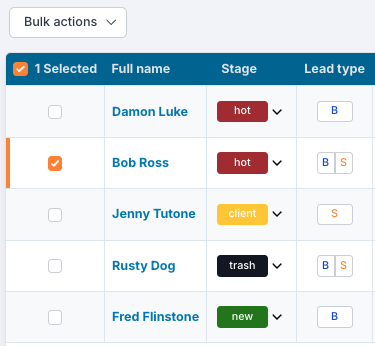
Open the Bulk Actions dropdown to see the options. Whatever you choose applies to every selected contact.
The main site and agent subdomains follow specific rules to keep lead routing fair.
Respond to new leads within your Round Robin claim window with a call, text, email, or note, and clear your Hot List every day so you never miss a contact who’s active right now.
