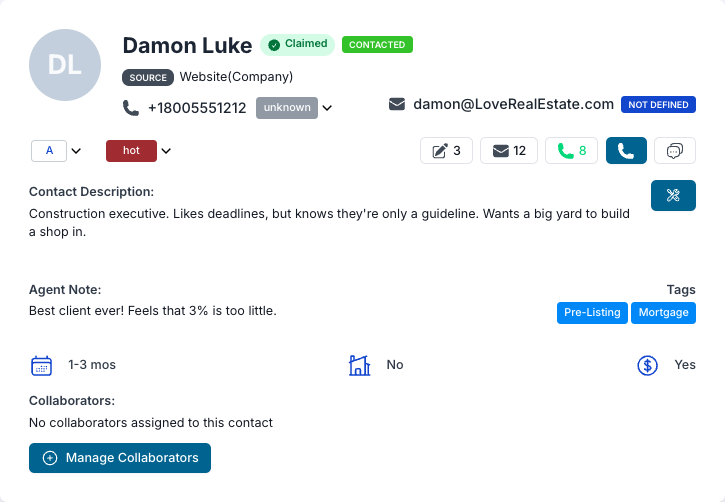
The first action step we recommend is to spend time clicking on buttons and links within the contact record to familiarize yourself with the information available to you. In this section, we’ll touch on some aspects that may not be as intuitive as others. Please note that though the look and feel of the mobile app is different, much of the same functionality is accessible there.
The most important item to address is the ways in which you can communicate with your contacts. The options available to you are at the top of the contact preview.
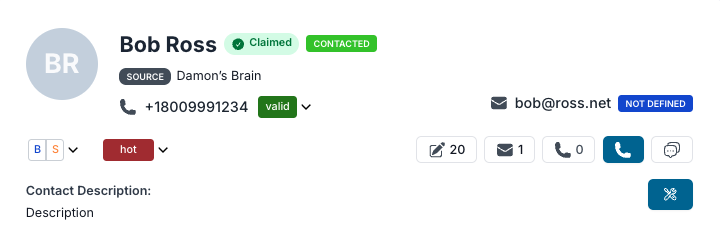
If wanting to email a client, simply click on the email address to open the email editor window. If wanting to call a contact, click on the blue phone button. You can then log the call by clicking on the green phone button. The black envelope with a ‘6’ next to it is indicating there are 6 website messages you can review. Website messages encompass messages from the
The pencil in a box icon with a ’20’ next to it indicates how many notes have been logged for the contact. Finally, the bubble icon to the right of the blue phone is for text messaging from within the contact preview. You can also use the ‘Messaging’ section from the main menu to access all text message conversations.
This section also contains the Contact Type and Contact Stage. Modify these as needed. Remember that IF a contact is enrolled in a Pulse365 Drip Campaign, by changing the stage, you may trigger activity within that campaign. We recommend that before changing the stage, verify in the Pulse tab in this Contact Preview if a contact is already enrolled in a campaign.
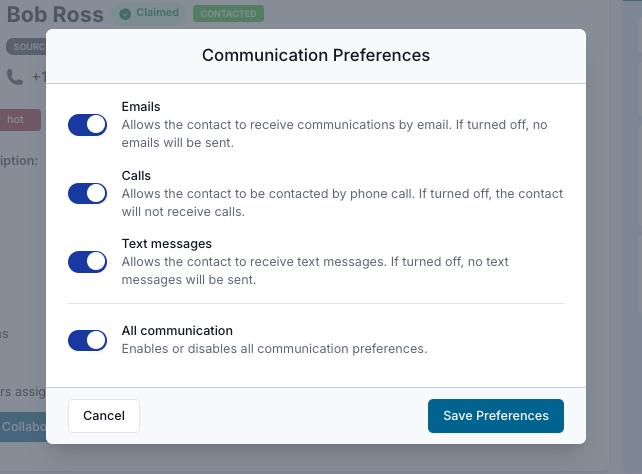
Use the blue settings button (showing crossed tools) to manually adjust client communication preferences.
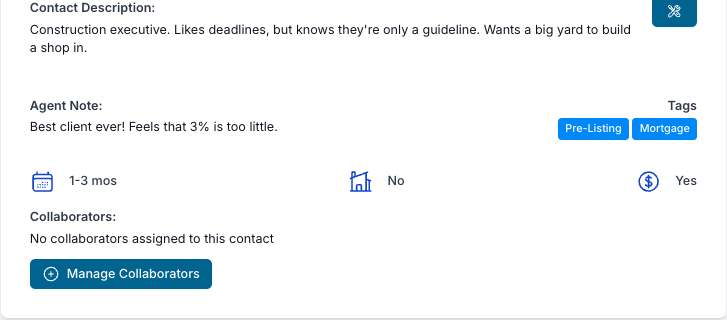
Contact Description – is intended for you to give any descriptive attributes to the contact to help jog your memory of who the contact is, what kind of person they are, important characteristics, and anything else that will help you remember a contact.
Agent Note – While you can log as many notes as you want to capture the historical record of communications with a contact, this note field is intended to give you the “quick glance’ reference to highlight the last communication, what the next step is, a key piece of information, or anything else that is important that will help you stay on point with the contact.
Tags – This lets you know what tags have been assigned to the contact. You can modify the tags in the Edit Profile section of the Contact Record.
Collaborators – Teaming up with another agent? Collaborate on a contact record with another agent to ensure all notes and communications are keeping everyone in the loop. As the contact owner, you can select another agent in your team or office to add as a collaborating agent to the contact. When the effort is over, you can cancel that collaboration if needed and retain full ownership of the contact record.
The three icons below Tags tell you the timeframe you have selected for when a contact is ready to take action, whether they have a home they need to sell, and if they’ll need to apply for a mortgage to purchase a home. These attributes remain as they are regardless of whether they are a buyer or seller type.
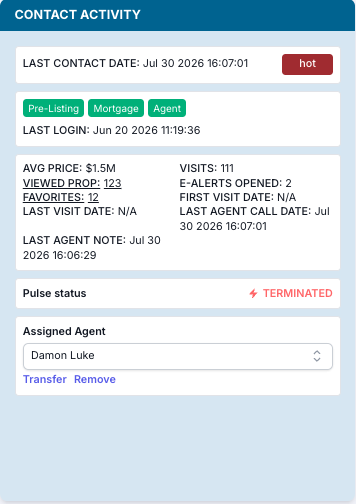
This section gives you quick details on the latest activity and current standing of a contact.
Last Contact Date – this refers to the last time the agent recorded an outreach action by participating in any of the activities in the Communication section of the Contact Preview mentioned above. Other qualifying outreach events include E-Alerts, Pulse365 Drip Campaigns, and Automated Market Reports.
Last Login – refers to the last time the contact has logged in to your site.
Avg. Price – is an average of the listed property prices the contact has been viewing.
Visits – total number of visits the contact has made to your website.
Dates – use these dates to know the recent activity of your contact. Also, these dates help RealHub 365 analyze contact activity for automated efforts.
Pulse Status – indicates whether a contact is enrolled in a campaign.
Assigned Agent – indicates who the the assigned agent is and allows for a contact to be transferred or removed to an “un-owned” status.
Automated Reports – displays the status of the contact’s involvement in automated market reports.
Instead of guessing who’s serious, RealHub365 tracks activity, website behavior, property interests, communication history, and engagement—all in one place.
Every time a lead visits your website, views properties, saves favorites, or interacts with your marketing, their profile becomes more valuable.
The more information you have, the easier it is to know who deserves your attention today.
At the top of every contact you’ll immediately see important information including:
Contact Status
Category
Pipeline Stage
Email Address
Assigned Agent
Last Login
Last Contact Date
These indicators help you quickly prioritize your follow-up without opening multiple screens.
⸻
One of the most valuable sections in the CRM.
Whenever a buyer views listings on your website, RealHub365 automatically tracks those properties inside their profile.
You’ll be able to see:
Recently viewed homes
Current asking prices
Favorite properties
Last viewed dates
Property activity
This allows you to have much more meaningful conversations.
Instead of asking:
“Are you still looking?”
You can say:
“I noticed you’ve been looking at homes in WaterColor around $2 million. A new listing came on the market this morning that I think you’ll love.”
That’s a dramatically better client experience.
⸻
Create personalized listing alerts directly from the contact profile.
RealHub365 automatically emails new listings that match your client’s search criteria.
E-Alerts help you stay connected without manually searching the MLS every day.
You can quickly create alerts based on:
Price Range
Community
Bedrooms
Bathrooms
Waterfront
Luxury Homes
Condos
New Construction
Once activated, the system keeps your clients informed automatically.
⸻
Store and manage all communication information in one place.
This includes:
Phone numbers
Email addresses
Communication preferences
Additional contact information
Keeping this information current helps ensure every email, phone call, and text reaches the right place.
⸻
This section gives you a quick snapshot of how engaged your lead really is.
You’ll see information such as:
Lead Category
Pipeline Stage
Phone Status
Last Login
Last Website Visit
Last Contact Date
Average Price Range
Properties Viewed
Favorites Saved
Source
Assigned Agent
Last Agent Note
These metrics help you determine which leads are actively shopping and which may need additional nurturing.
⸻
One of the easiest ways to identify an active buyer is by monitoring their most recent website login.
If someone logged in today, there’s a good chance they’re actively searching.
Combine this information with recently viewed properties to prioritize your follow-up.
⸻
RealHub365 automatically calculates the average price range of properties a buyer has viewed.
This gives you immediate insight into their likely budget without asking.
It also helps identify when a client’s buying criteria changes over time.
⸻
Every property viewed tells a story.
You’ll know:
Which communities interest them
Their preferred price range
Luxury vs. primary residence
Waterfront vs. inland
Investment behavior
Returning favorites
These insights help you deliver recommendations your clients actually care about.
⸻
Understanding where your contacts originate helps measure your marketing performance.
Examples include:
Google Search
Facebook
Zillow
http://Realtor.com
Website Registration
Open House
Referral
Sign Calls
Manual Entry
Knowing your best-performing lead sources allows you to invest more heavily in what produces results.
⸻
Always document important conversations.
Notes create a timeline of every client interaction so you’ll always remember:
Family details
Desired communities
Timing
Financing status
Objections
Showing feedback
Next steps
The more detailed your notes, the more personalized your follow-up becomes.
⸻
The most successful agents don’t wait for buyers to reach out.
They monitor activity daily and contact clients while they’re actively engaged.
A buyer who viewed five homes today is much more likely to respond than someone who hasn’t logged in for three months.
Spend just a few minutes each morning reviewing recent activity, property interests, and new website visits. This simple habit helps you prioritize the right conversations, provide timely recommendations, and convert more leads into clients.
⸻
💡 RealHub Pro Tip
Don’t judge a lead by how many times you’ve spoken to them—judge them by their activity. A quiet buyer who logged in this morning and viewed five luxury homes is often a stronger opportunity than someone who hasn’t visited your website in months. Let behavior guide your follow-up, and you’ll spend more time with clients who are ready to move.

The tabs within the Contact Preview will be addressed in greater detail in the following pages: (coming soon)
| Summary | Email History | To-Do List | Notes |
| History | Activity | Searches | Edit Profile |
| Addresses | Transactions | Listings | Pulse |
| Documents |