
Templates
Under ‘Marketing Tools’ within your CRM platform, you can access your templates. These templates can be used in both email and text communications.
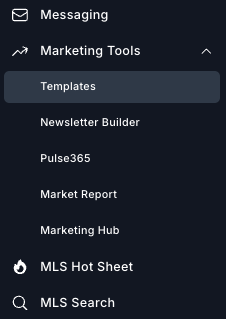
Your account comes pre-loaded with several templates. Each template can be used as-is or they can be modified to suit your needs. Each template can be made available to be used in emails, text messages and in creating your Pulse drip campaigns.
Edit
To edit a template, simply select the template you want to update from the list…
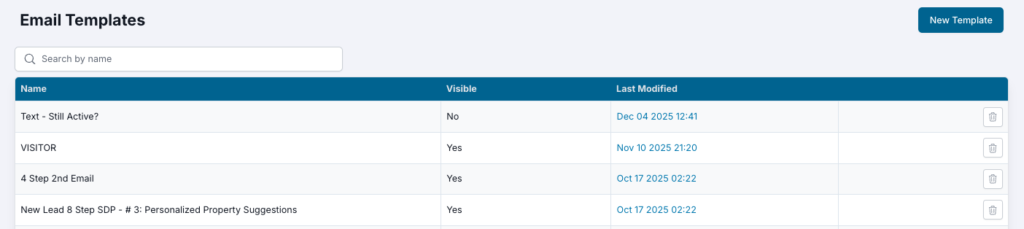
And you’ll be presented with a text editor. Use the editor window to modify the template to your liking.
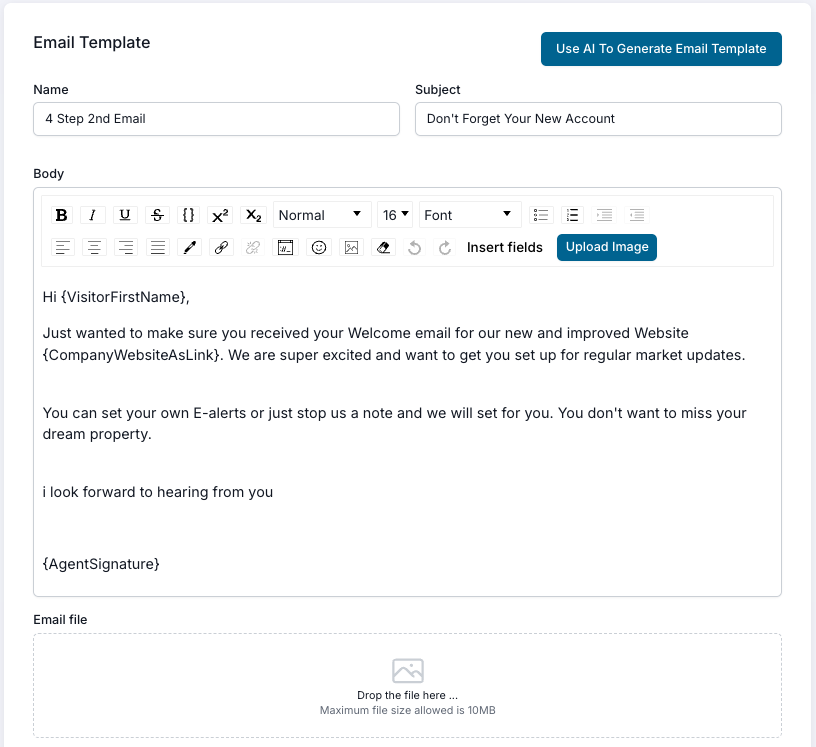
Some helpful tips:
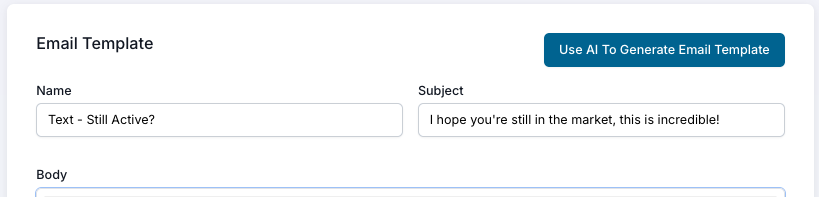
Name: This is the name you assign the template to help you reference what the template’s purpose is.
Subject: This is the subject line of the email that your recipient will see from within their inbox.
Insert Fields: Use this to personalize your templates by inserting a connection to a specific field in your database, like a contact’s FIRST NAME. As you use these templates individually or in bulk, this feature inputs the database information automatically each time.
Upload Image: This allows you to upload images within the body of an email.
Email File: Attach a file to the email. If you create marketing content or a newsletter in another program, you can attach that file to a template that will go out with that email each time it’s used.
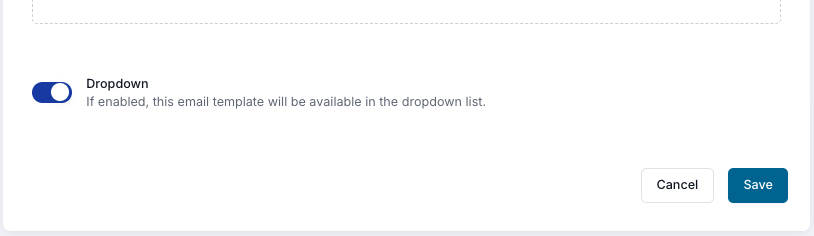
Dropdown: When the Dropdown toggle is turned on (to the right), your template will be available within the dropdown menu of your email drafts, Pulse drip campaigns and texts. If a template is no longer used, but you want to keep it, simply turn it off and it will be hidden from those results.
Expert Tip: add the word ‘Archive’ to the beginning of template names you no longer use. Then, click on NAME at the top of the templates list to easily sort all archived templates to the bottom of your list.
Create
To create a new template, begin at the templates list and click the ‘New Template’ button at the top right of the view. The layout is the same as if you were editing an existing template, but this gives you the option to start completely fresh.

There are two key uses for the new template option:
- Create a new template using your own manually entered text OR get some help using AI to write the text body for you! To do this, simply:
- Click the ‘Use AI To Generate Email Template’ button.
- In the keywords field, enter your prompt. Be as specific as you want to leverage AI’s ability to write powerful engagement messages.
- Click ‘Generate Template’.
- When the content appears, click ‘Use Generated Template’.
- This content will now be populated within the body of the message where you can insert automated fields, images, or other content of your choosing.
- Migrate your content from another CRM platform by copying the content from your old system and pasting it into the Email Template body. Once pasted, be sure to modify it with automated fields and other media that may not have transferred over with the copy and paste.
As always, be sure to click ‘Save’ at the top to ensure your new template is available in your templates list.
Text Messaging
The templates section where you create emails is the same section used to create text message templates. You can create text message templates following the same steps as outlined above, and they will show in the list along with your email templates. For this reason, we recommend you write the word TEXT at the beginning of your text template names so that you can easily locate them when searching within the dropdown for a text message you’re sending.
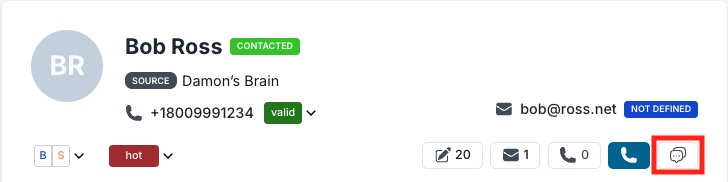
Once you have your templates ready, you can send a text by going into the contact record and selecting the messaging icon.
Now, click on the templates icon in the messaging window to display a list of your templates. You can also attache an image or leverage AI to help you write your text content right from this screen.
