
Admin: Round Robin
Automate your lead routing with the customizable Round Robin feature.
This setting is found in the Settings area of the CRM. Video and transcribed text are below to provide a full understanding of how the Round Robin feature works.
Your RealHub 365 website has been optimized with a variety of tools like blogs, video linking, Google business review matching, and high ranking community pages that give you greater exposure on search engines, like Google.
This, coupled with an all new code base that is designed to enhance your site’s credibility, compared to legacy sites that have become antiquated, provide you with the industry’s latest tools to guide organic traffic to your business.
Your site captures that traffic as new leads in your CRM with a simple login and account creation prompt.
What happens next is important because it determines how well those leads are managed.
Teams and brokerages typically receive leads from their main website and other sources and need those leads distributed among their agents. This is where the Round Robin comes in.
It’s important to set up your round robin so the leads are distributed based on your preferences.
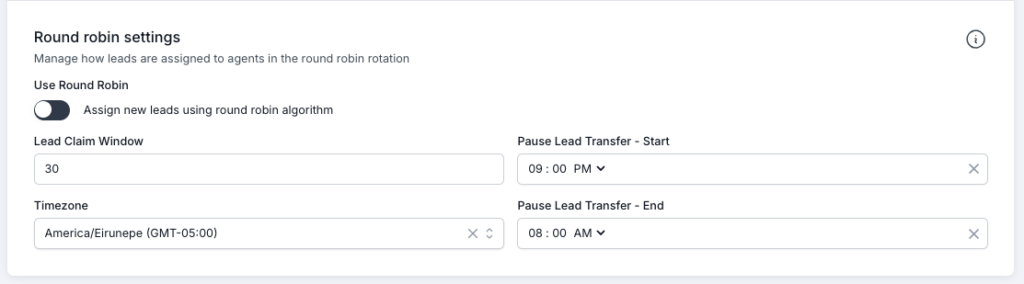
The first thing we want to do is go into the settings section of your CRM and scroll down to Round Robin settings.
First, let’s set the Lead Claim Window.
This field determines how many minutes an agent has from the time they receive a new lead to go claim that lead, before it is transferred to the next agent in the queue.
Next, select your time zone.
Next is pausing lead transfers.
This allows you to pause subsequent lead transfers after a new lead is originally assigned to an agent.
This setting applies to the entire group and is typically used for non-working hours.
For example, I may set my “Pause Lead Transfer” start time to 10 p.m. and I would end that window at 8 AM.
This means that during the hours of 10 PM and 8 AM, new leads will be assigned to agents enrolled in the round robin, but those leads will stay with that agent until the window closes.
When the pause lead transfer window ends at 8 a.m the agents that received new leads will have the amount of time determined in the lead claim window, in this case 15 minutes, to claim the leads before they are transferred to another agent.
Once you’ve adjusted the settings the way you like, turn on the Round Robin.
If you receive leads that are pre-assigned before coming into the CRM, those leads are not enrolled in the Round Robin and will remain assigned to the agent to whom they were originally assigned.
Next, we need to look at your team members and determine among those team members who is going to be enrolled in Round Robin.
This is done under the Permission section within each team member’s profile. For a team member to be enrolled in round Robin, simply mark them as an “Active User”.
This gives them full rights to receiving leads through all channels available.
As a side note, if a team leader or broker only wants an agent to receive leads through their personal website or from leads that are manually transferred to them, select the “Profile Only” account type.
On each of these adjustments that you make to both the Settings section and to a team member’s settings, please be sure to select “Save” at the top on both pages to ensure that the settings have been saved.
You’ll need to repeat this with all remaining team members you want enrolled in your Round Robin lead distribution.