
New and Existing Leads
This section deals with leads that come through personal interactions and your website. Paid lead sources are addressed in the section on Integrations.
New Leads
There are various ways leads come to you as an agent. The primary ways addressed here are:
- Organic – Search engines direct visitors to your site where visitors register for an account and provide their contact info. Your presence on search engines is due to a combination of your SEO and marketing efforts and the way in which RealHub 365 websites are built.
- Pay Per Click (PPC) – This is a paid service that targets key search terms to improve your ranking and thereby send interested traffic to your website.
- Personal Interaction – children’s soccer games, pickleball, community events, etc. where you obtain phone numbers and other contact details to expand your SOI.
All new leads and existing contacts live in the Contacts section. The user interface was designed to enable quick understanding of the contact as well as take quick action to simplify the process of client engagement.
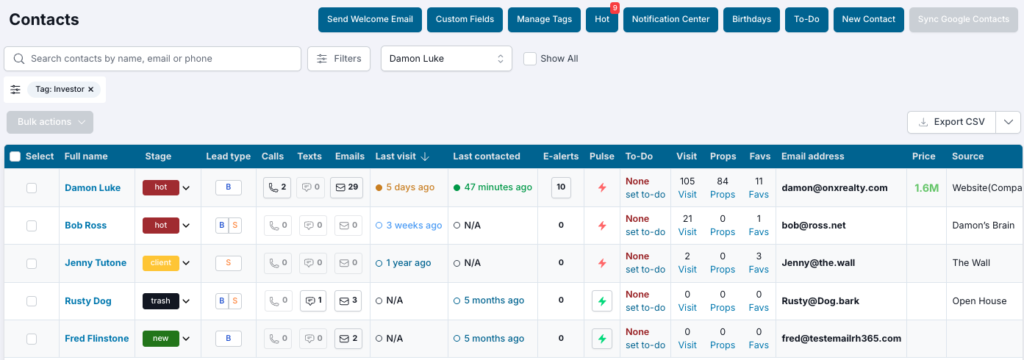
Web Leads
The contact dashboard was designed to be fairly intuitive to the user. Here, you will be able to do the following:
- Create custom fields – create optional and required fields that comprise text, dates, and radio buttons that will show up in the EDIT PROFILE view of a contact record.
- Manage Tags – using tags, as seen above, will enable you to filter your contacts and then take quick action using the ‘Bulk Actions’ dropdown button. There are no limit to the number of tags you can create, and existing tags from other platforms can be imported to maintain consistency for you.
- Hot List – your Hot List alerts you to high priority activities among your database so that you can quickly engage with insight and enhance the value your contacts see in you. It’s important that you clear your hot list as soon as possible so that all new contact activities continue to alert you from this section. The Hot List lets you know:
- when a contact is on your site
- when a contact is engaging with a specific property
- when a contact has opened an alert email
- Notification Center – alerts you to specific properties a contact has interest in and let’s you know when a contact has sent you email and text messages.
- Birthdays – this is a standard field in the contact record’s profile. When you enter a contact’s birthday into this field, you will be notified of the contact’s birthday on the date specified. However, your birthday notification area will show you all birthdays within the upcoming, revolving 2 weeks.
- To-Do Tasks – all tasks that you create, either manually or from a drip campaign, will show up here. As you complete the tasks, mark them complete and they will be removed from the list and catalogued to the appropriate contact record.
- New Contact – create a new contact using this form. Leads from web sources automatically create a new lead within the CRM. For a new lead to be created, it must contain a FIRST NAME, LAST NAME, PHONE # and/or EMAIL. If you want to send a welcome email to a single contact, use the same ‘Welcome Email’ button and select only that one contact.
When a new lead is created through your website, an automated welcome email is sent to the new lead (if they provided an email address). A web lead that is assigned to you will trigger notifications based on your settings in the mobile app. It will also create a hot list record for you to be made aware of the need to connect with that new lead.
Round Robin
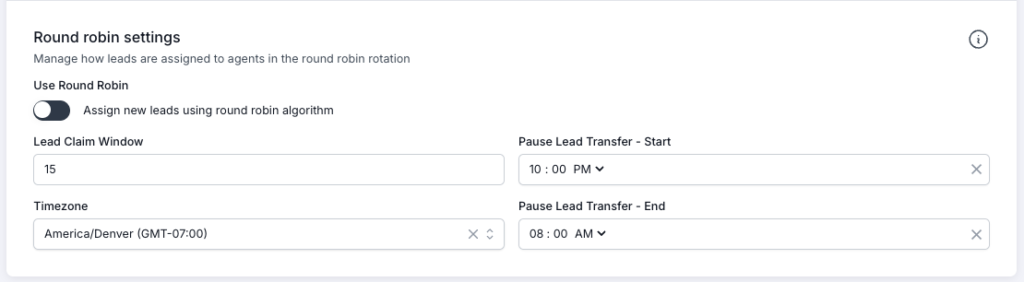
If you’re on a team, you may receive leads via Round Robin, in which case you have a limited amount of time to claim that lead before it is transferred to another team member. Your admin sets the timeframe for the Round Robin and determines whether your team will use this feature for lead distribution. If turned ON, the Round Robin will allow you a specific period of time to claim a lead, as well as a period of time when lead transfers are paused.
For example: If the claim window is set to 20 minutes, an assigned lead will be transferred if you have not claimed it within that period of time. If your admin has set a pause window from 10pm to 8am, then a lead received at 6am will be assigned at random to a team member, but will not be subsequently transferred until 8:20am IF the lead is not claimed by that time.
How to Claim Leads
An agent can claim a new lead in several ways, including:
- Send an email
- Add a note to the contact record for the new lead
- Log a call for the contact
- Send an SMS message
- Add a To Do task for the contact
- Assign a Smart Drip Plan to the contact
- Send a bulk email to the contact
- Send a hot sheet email
Note: Simply opening and viewing the contact by clicking on the link in the email, changing a stage, or tapping on the push notification will not cancel future round robin transfer attempts.
If you receive leads from a lead generation service, leads may already come into the CRM pre-assigned to an agent. If this is the case, the Round Robin feature does not modify the assigned agent.
Existing Leads
Your existing leads from another platform can be imported via CSV file into the RealHub 365 CRM. Your rep will guide you through preparing the file and then will make final adjustments to ensure it’s ready for successful import.
Importing leads can be done before going live during the onboarding stage, as well as any time you choose while using the RealHub 365 platform. However, to protect the databases for all team members, only those with specific admin privileges can import and export data. If you need to import a database, please coordinate this with your admin.
Welcoming Your Database
Prior to going live with RealHub 365, you are highly encouraged to send advanced notice emails from your current platform to alert your clients and contacts to the decision you’ve made to move to a system that will better serve their real estate needs. When you finally go live, your contacts will be ready to accept the invitation to visit your site and register on your new account to access properties, create searches and e-alerts, and access the valuable tools you make available to them.
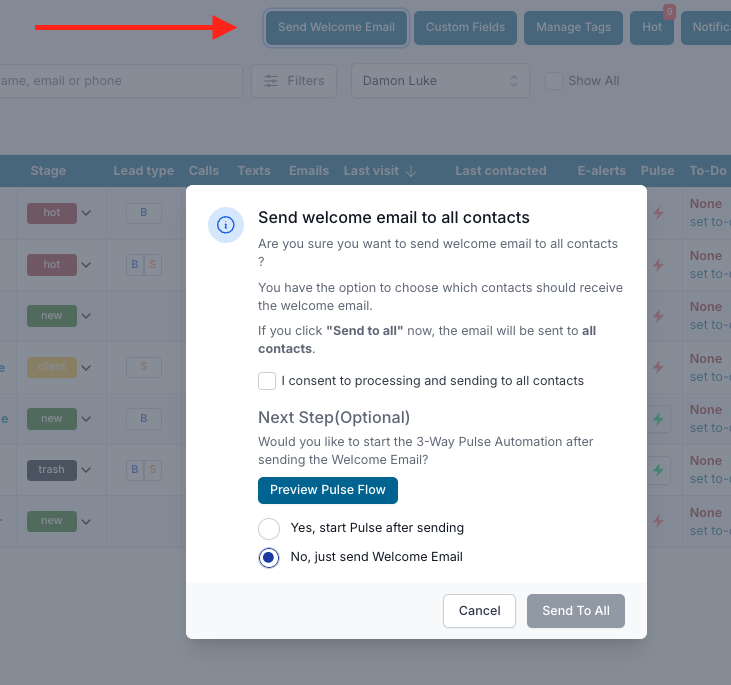
When you go live and the domain points to your new website, go into the CRM and click the button at the top left of the Contact Dashboard that says ‘Send Welcome Email’.
You will also have the option to enroll these contacts in a Pulse drip campaign that is specific to getting leads to engage with your site. If you want to do that, select Yes and those getting the welcome email will be enrolled.
Bulk Actions
First, select one or more contacts. You can select in bulk by clicking into the open box next to ‘Select’
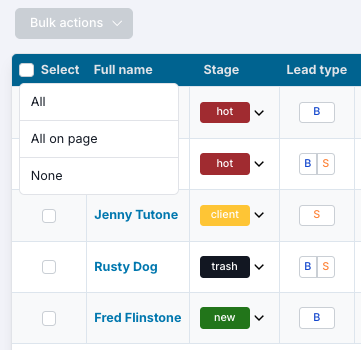
Or, you can select a single record by simply clicking into the box next to the contact name.
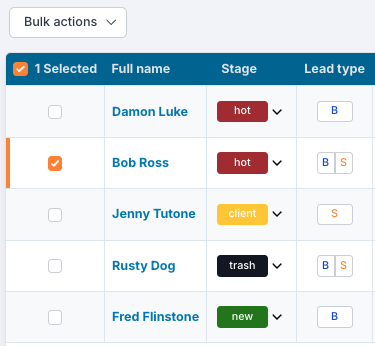
Then, click on the bulk actions dropdown to reveal the options available.
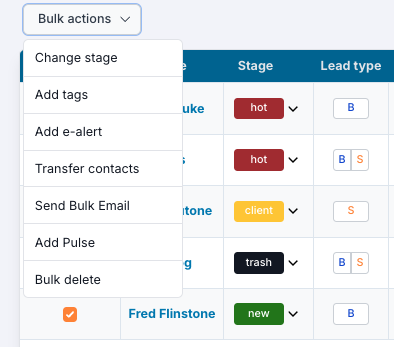
Whatever action you select, it will apply to all the contacts you’ve selected.
Lead Logic
Both the main and subdomain websites use specific logic to manage new leads. You may want to be aware how this is done to ensure fair lead routing.
For New Leads:
- If a visitor comes to Agent A’s subdomain and searches properties, no search history is logged yet because the user is not registered.
- Once the visitor registers or sends a message (contact us form), that lead is immediately assigned to Agent A (the subdomain they originally came from).
- After that point, the lead can navigate anywhere (other subdomains, main site, listings), but the lead ownership stays with Agent A.
For existing leads:
- All activity is logged to the existing contact record, and the lead remains assigned to the same agent, regardless of which subdomain or site section they are browsing.