
Communities & Testimonials
Customizing your communities and testimonials is an important part of defining the scope of services you provide to interested parties. Go to your Profile to customize these important features.
Communities
A team member with broker/admin privileges can create as many communities as needed to highlight the targeted service areas of your company. Each community has a defined area that correlates to the real estate inventory available within your MLS boundaries. If you are unable to find a community for selection, please contact the individual in your organization that is responsible for maintaining the content of your website and CRM.
Once the communities are created, you can select the specific communities for the areas you service as a real estate agent. This is done inside your Agent Profile.
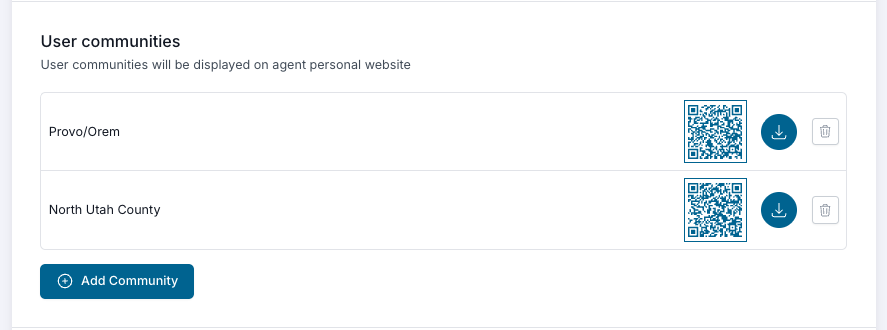
Now that you’ve added the communities you want, your site visitors can choose from the communities options in the main menu at the top of personal websites as well as from the dropdown in the search box of your website so that the search results will display only those properties that meet the community criteria.
Selecting communities does not limit options for creating e-alerts within your MLS area.
The main focus for Communities is your ability to use the unique QR codes for each community in your marketing and to drive traffic specifically to those community pages where they will find filtered properties found within a given community, see the information you provide, use quicklinks to pricing ranges, etc.
This feature is also great for highlighting subdivisions or certain specific areas of your choosing to help market a community you have become, or hope to become, the authority of.
Please note that while we recommend it, selecting communities is not required.
Testimonials
Your main company website will display all testimonials for all agents and all contacts. Your personal website allows you to select specific testimonials that will show on your personal website.

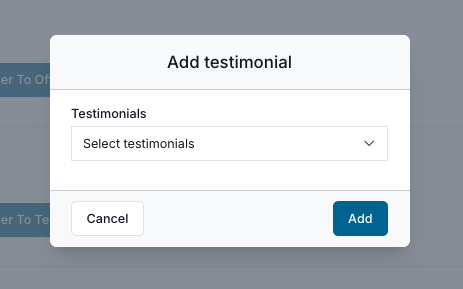
If your company has a Google business page and the link has been saved to your CRM platform, all testimonials since the link was saved will have duplicate presence on both Google and your Company website. This will enhance the indexing capabilities of your personal website.
Adding Testimonials
There are two ways to obtain testimonials for your company website.
- Send your testimonial link via email or text
- Manually enter a client’s testimonial
Using the Link
In your profile page within the Testimonials section, you have a link that allows you to copy your company’s testimonial link and send it via email or text to clients. If your company’s Google business page link has been saved to RealHub 365, each client that receives your testimonial link will have the opportunity to submit their review/testimonial to your website and to the company Google business page almost simultaneously.
Your link opens a page that looks like this:
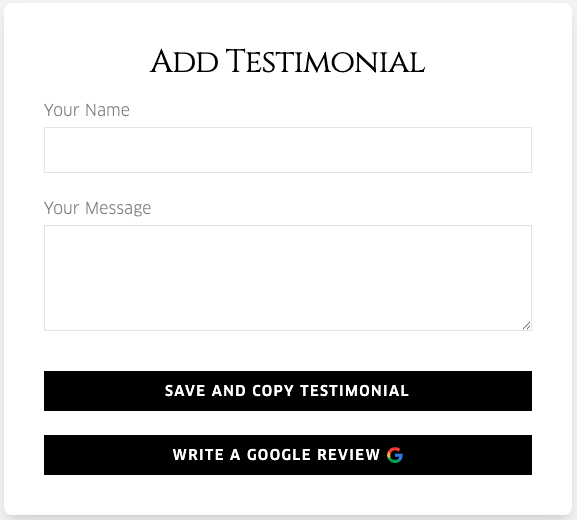
When a client types their name and message, the testimonial is immediately created on the main company website.
A message will be displayed explaining that the client will soon be taken to a Google review page where they can paste their message for completion of a Google review. If they have a google account, they just need to paste, click 5 stars and submit.
Manual Submission
You can manually add testimonials to your company website. If a client texts or emails you their review, you will need to request that the testimonial be added to the site by an administrator. Once the testimonial is created, you can then go in and add the testimonial to your personal site.
This method may need to be used for existing testimonials that you want brought over to your new site at the time you go live on the RealHub 365 platform. Please coordinate this effort with your administrator.