
Admin: Website DNS Settings
The last step in going live is to point your domain toward RealHub 365 Servers. This is also referred to as changing your DNS settings. As there are multiple options for domain hosting, we’ll provide instructions from within the most popular source – GoDaddy.
You can choose from these options to make the necessary DNS settings change:
Option 1 – Delegate Access
Option 2 – Manage Your Own Settings
Delegate Access
You can ‘Delegate Access’ to RealHub 365 from within your domain management account so that we can make the necessary changes for you. If you’d prefer to go that route, please follow the steps below:
1. Login to your GoDaddy Account (or other if not with GoDaddy)
2. Click on your name in the upper right corner and choose ACCOUNT SETTINGS from the dropdown
3. On the next page, click on the ACCOUNT SETTINGS drop down at the top-center, and then click on DELEGATE ACCESS
4. Once the next page opens, click on INVITE TO ACCESS
5. Use Onboarding@realhub365.com as the email address you are inviting to have access and then send your rep a quick email letting them know it’s been done.
Manage Your Own Settings
Step 1:
Log into your domain registrar’s website and select the domain for your business website.
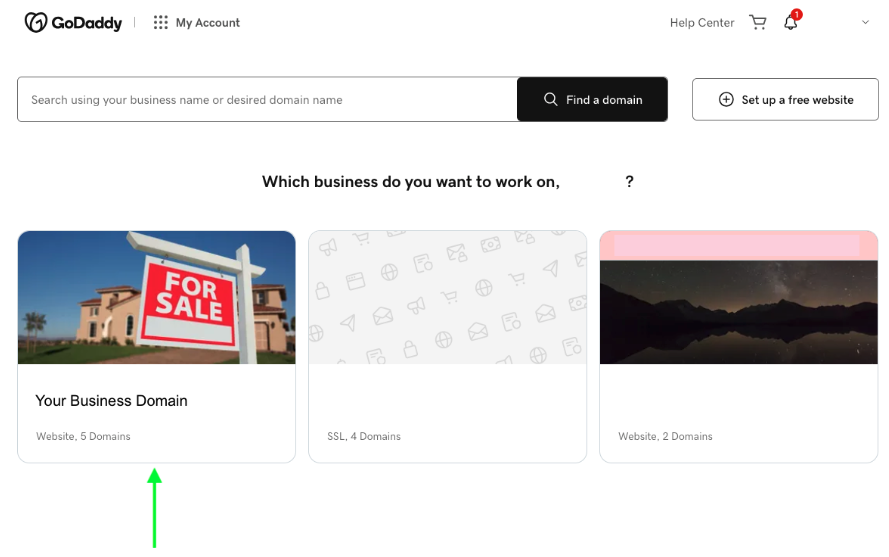
Step 2:
Locate the Products or Domains section and then choose Manage DNS.
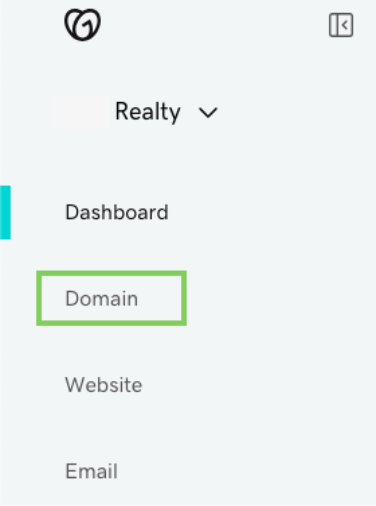
Step 3:
Select ‘Manage DNS’

Step 4:
DELETE each of the ‘A’ Records shown below by selecting the trash can icon on the right. *** Please take a screenshot of the current settings for your own personal records before deleting or changing anything.***
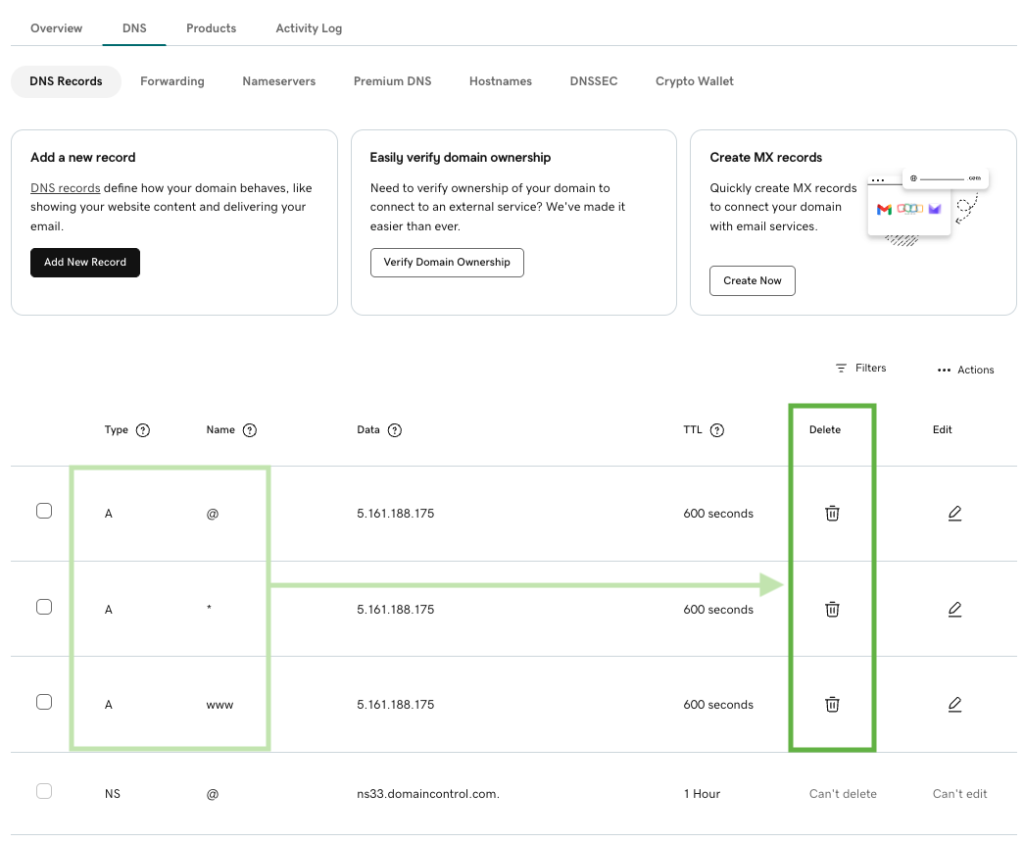
Step 5:
Select the “ADD NEW RECORDS” button. You’ll repeat this process 3 times. Here’s what you need to enter for each new Record:
| New Record 1 | New Record 2 | New Record 3 |
| Type: A Name: @ Value: 5.161.188.175 TTL: Custom Seconds: 600 | Type: A Name: * Value: 5.161.188.175 TTL: Custom Seconds: 600 | Type: A Name: www Value: 5.161.188.175 TTL: Custom Seconds: 600 |
The same value will be used each time: 5.161.188.175. Be sure to click SAVE after each new entry.
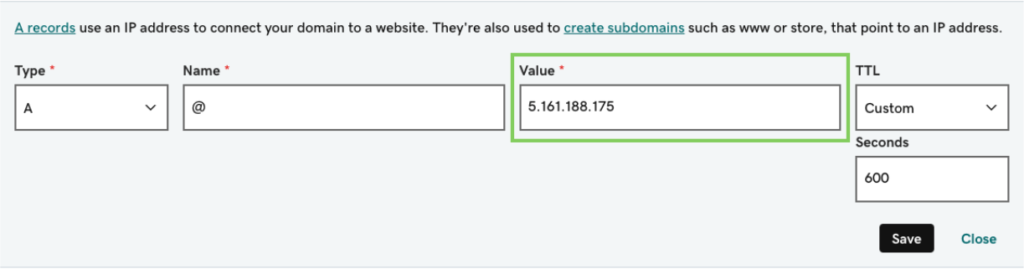
Step 6:
Let your rep know that it’s done so RealHub 365 can finish taking you LIVE!!!