Let your clients’ words establish your credentials. RealHub365 adds extra horsepower: every testimonial can also become a Google review, giving your company more exposure.
As an admin, you can copy in existing testimonials and send a link to request new ones.
Copy over the testimonials you already have on other sites.
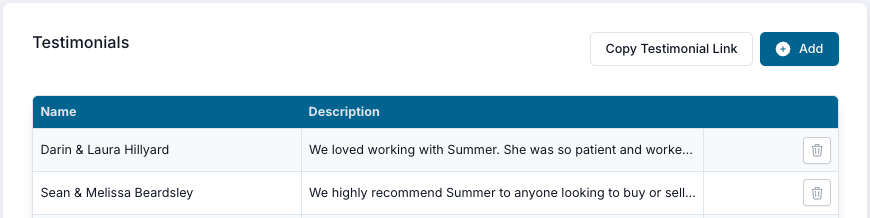
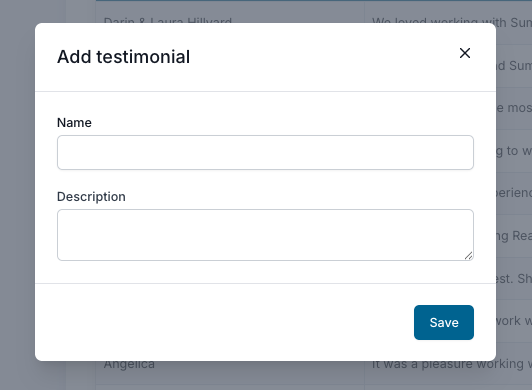
Enter the client’s name, put the testimonial in the Description field, then click Save.
Click Copy Testimonial Link, then paste the link into an email or text message and send it to your clients.
Your agents can copy the same link from their profile page and add it to their own signatures and templates.
Your company’s Google Business Page has a link that goes directly to your reviews. This video shows how to find it:
Once you have the link, paste it into the Google Review URL field and click Save.

When clients open your testimonial link, they’ll see a page like this:
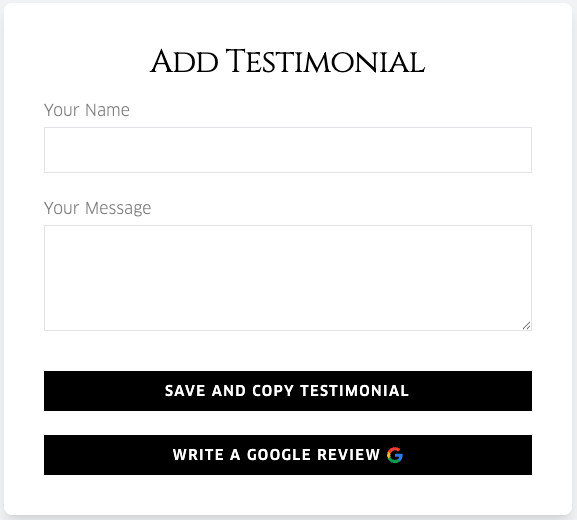
After typing their testimonial, they click Save and Copy Testimonial. That does two things:
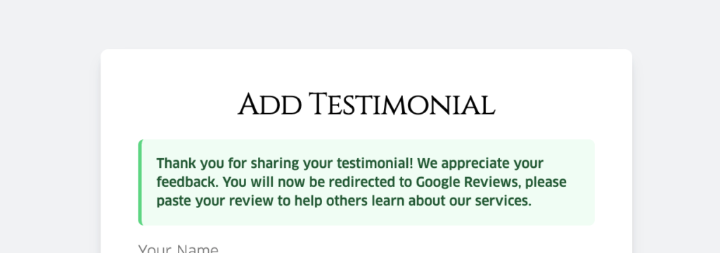
A notice tells clients they’re being redirected to your Google Reviews. There, they paste their review, select 5 stars, and submit.
Send your testimonial link right after closing, when clients are happiest, and make sure your Google Review URL is saved first, so every testimonial can become a Google review too.
