RealHub365 comes equipped with Pulse365 Drip Plans to assist you in your contact management efforts.
To create a Pulse Drip Plan, simply select Marketing Tools from your main menu, then choose Pulse365 Drip Plan.
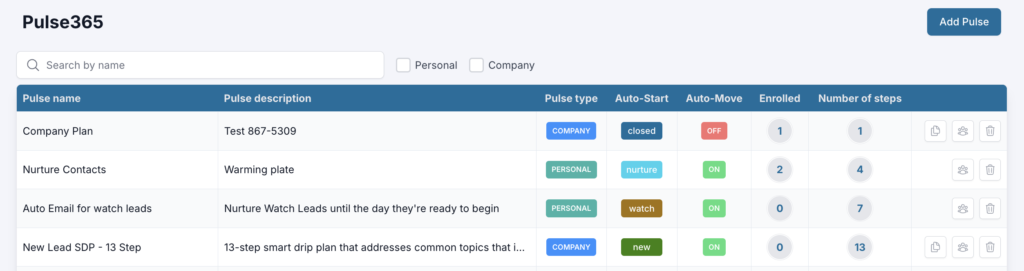
The pre-loaded plans may be used to enroll contacts into them, or they can be used as a guide for you to create your own. One plan in particular (3-Step Onboarding Email Sequence) is recommended to be used for new contacts, including imported dormant contacts in your database.
From this view, you are also able to see how many contacts are enrolled in a plan, and by clicking on the number it will display the names of the contacts.
Then, see quickly how many steps are in a given plan, and finally, you can add members to a plan and delete a plan entirely if you choose.
To create a plan, simply click “Add Pulse” in the upper right corner and a blank slate will be displayed to start creating that new plan.
In this tutorial, we’re going to look at an existing plan.
Clicking on a drip plan will open the plan for editing.
The main display shows your available plans, whether it’s a company or personal plan type, if it is set to auto-start on a particular stage, and if that plan will auto-move somebody to a different stage once the plan has completed all of its steps.
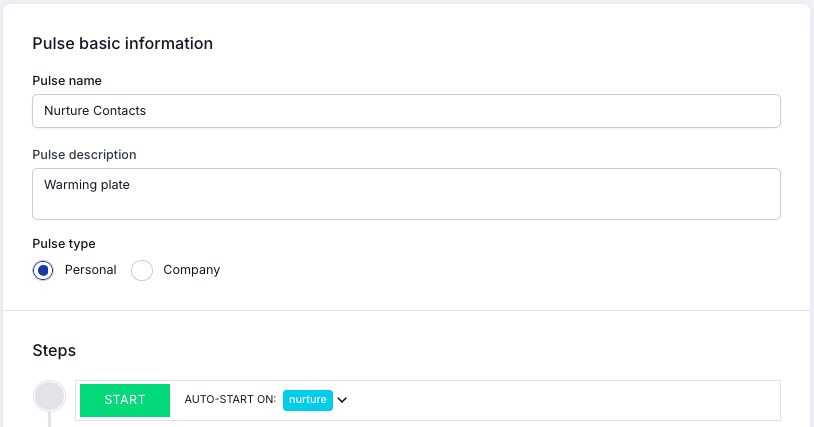
Here you can see a name, a description and whether the plan is available to you personally or available to the entire company.
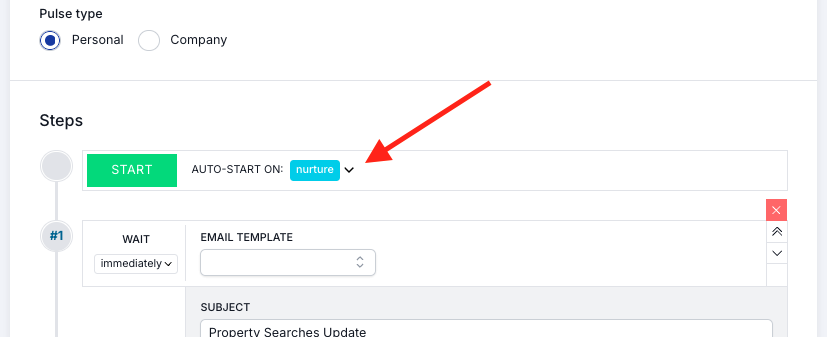
Looking at the steps of the plan, first decide whether you want the plan to auto-start on a given stage. The auto-start function only works IF a contact has been enrolled to the plan. More about this found below.
For example — if you’ve enrolled a contact, or contacts, into a particular plan, then when their stage at the contact level is changed to the same stage of the plan, they will begin receiving communications based on how this plan was created.
If you do not want the automation to occur, simply select ‘none’ from the list of stages for auto start, and this will give you complete manual control over who is assigned to that Pulse365 drip plan.
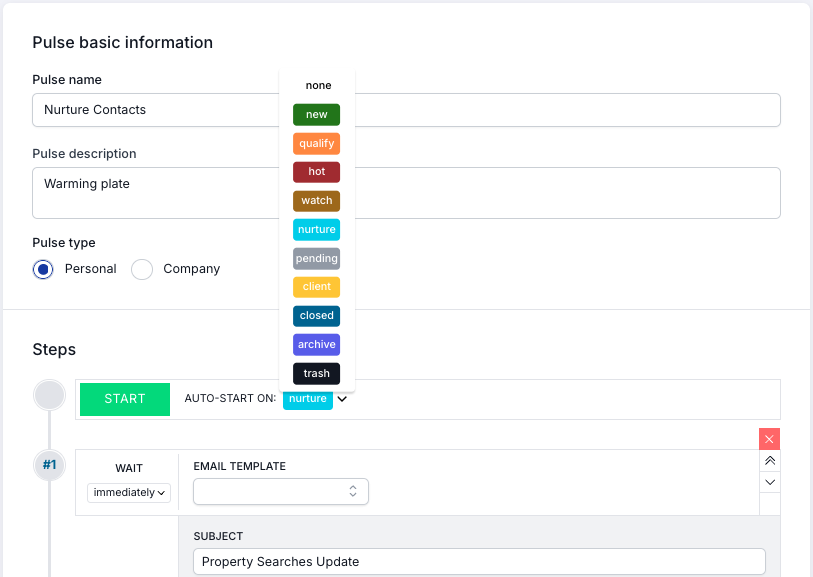
Shown below, when someone is enrolled in this plan and their stage has changed to “Nurture”, they will immediately receive the first email from the campaign.

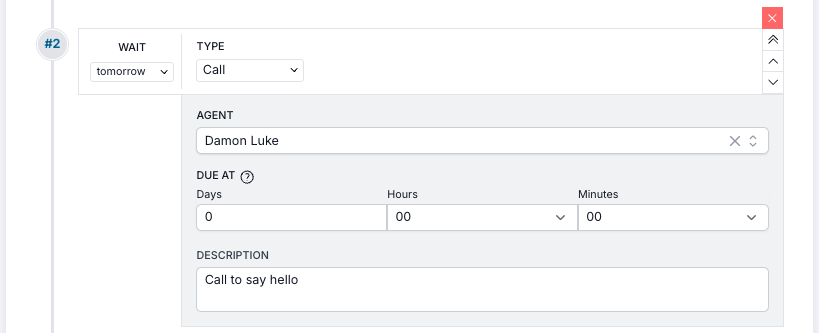
An optional step in the plan is a manual step that will show up in your web and mobile applications as a To Do task to let you know that you need to make a phone call, send a text, etc.
In this plan, a scheduled call occurs the day after the previous step. The step is a phone call assigned to this agent with a descriptive note that says to call and say hello and will show up as a To Do task. If you desire a specific timeframe for when a task is due, you can choose an optional due date. This is typically used for a unique campaign for a specific user.
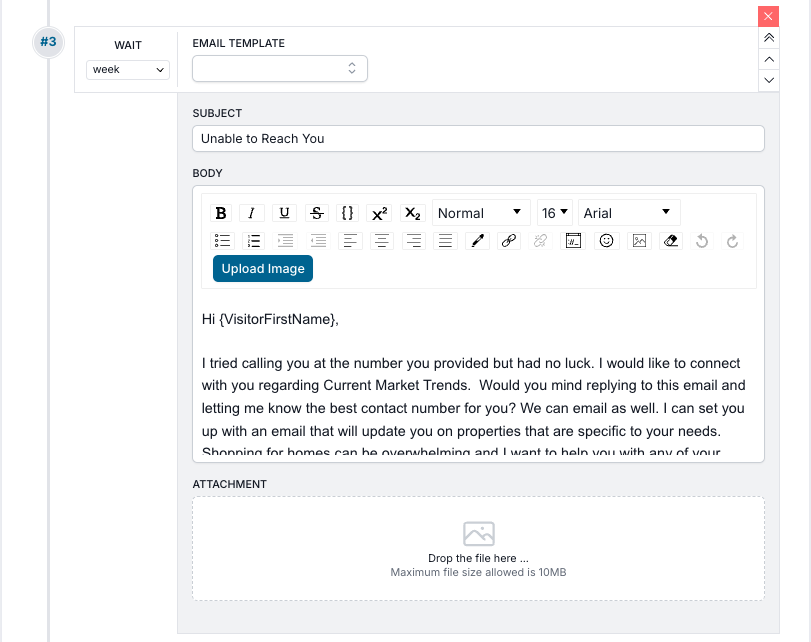
The next step in this plan is an automated email that occurs one week from the scheduled call.
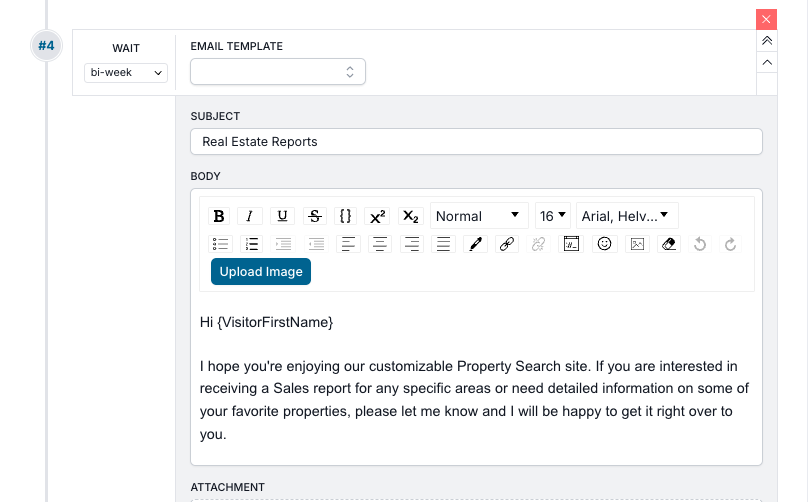
The last step in this plan is another email that will go out two weeks after the previous step.
To add more steps to your plans, simply choose ‘Email’ or ‘To Do’.

When creating an email step, select a timeframe and choose the desired email from the dropdown list of Templates. Then, add an optional attachment you want to go with it.
When you’re finished creating your Pulse365 drip plan, select whether you want to auto move a contact to another stage when a contact has completed all of the steps of the Pulse365 drip plan without taking any action. Or, leave this option off if you simply want the plan to end.
In this example, any contact who completes all of the steps of this plan will be moved automatically to an “Archive” stage.

Remember always! For any changes you make, be sure to click “Save” before navigating away from the page.
You can enroll your contacts into multiple plans ahead of time, and then your contacts will immediately begin receiving communication from you based on the stage they are assigned and the plan associated with an auto-start of that stage.
You can create as many plans as you like, with as many steps as you like. There are no limits.
There are multiple ways to enroll contacts into a Pulse365 campaign. The first way is to enroll a contact from the main Pulse365 screen.

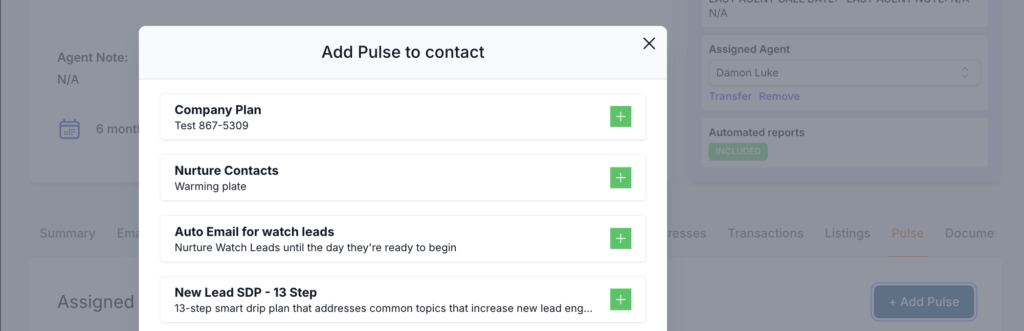
Another way to enroll contacts into Pulse365 campaigns is to go into the contact record and click on ‘Pulse’.
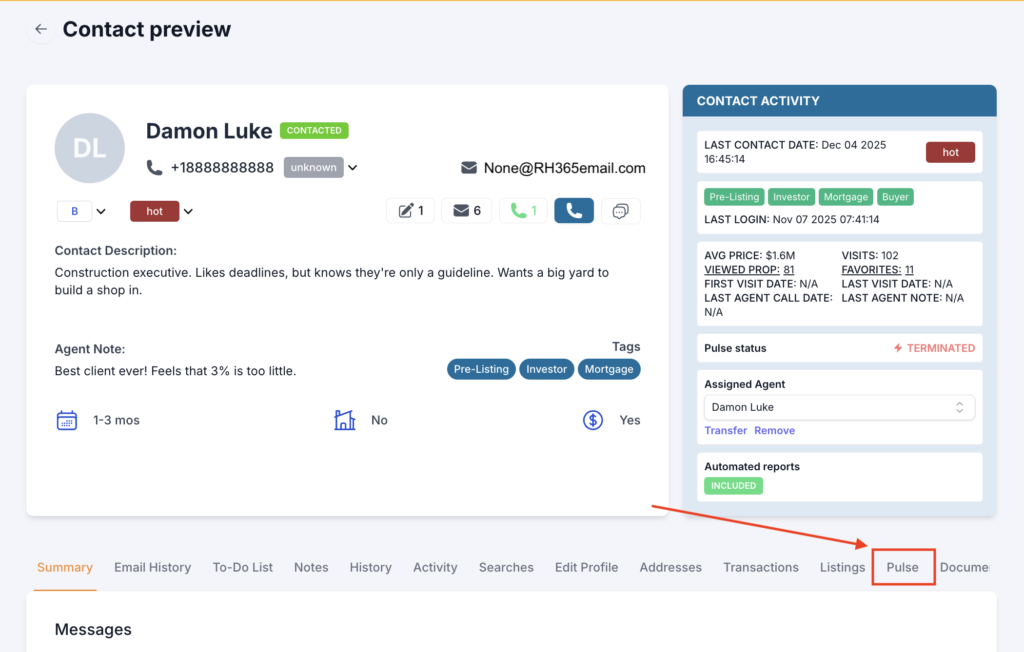
When the Pulse tab opens, you can add a pulse (as well as unsubscribe the contact from campaigns currently enrolled).
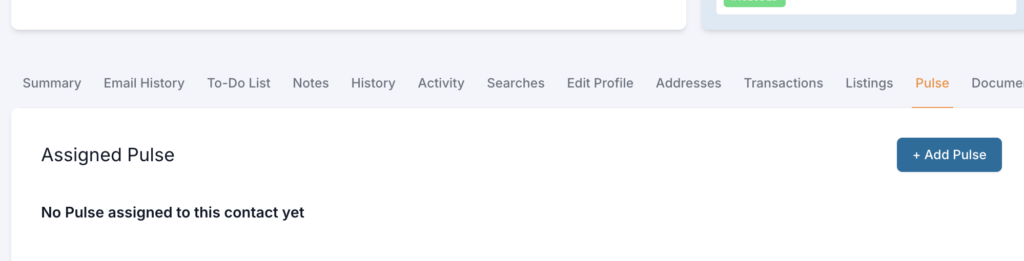
Click on the green box to enroll a contact into a plan.