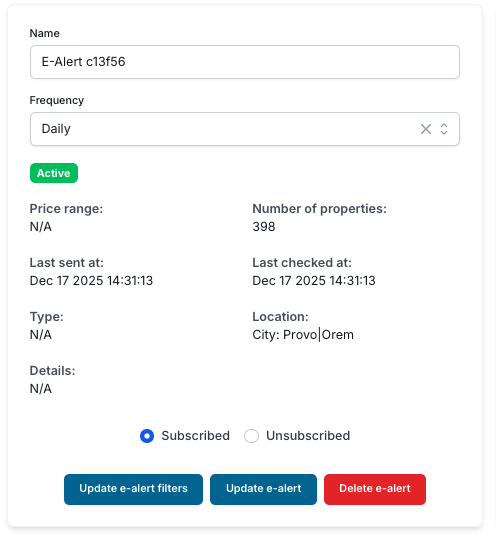
This is perhaps one of the most important tools a real estate agent can use to create business opportunities for both existing and new clients. These automated outreach emails deliver recommended properties based on 3 input methods:
Within the contact record for any contact in your RealHub365 CRM, you will find the ‘Searches’ tab below the critical information portion of the record.
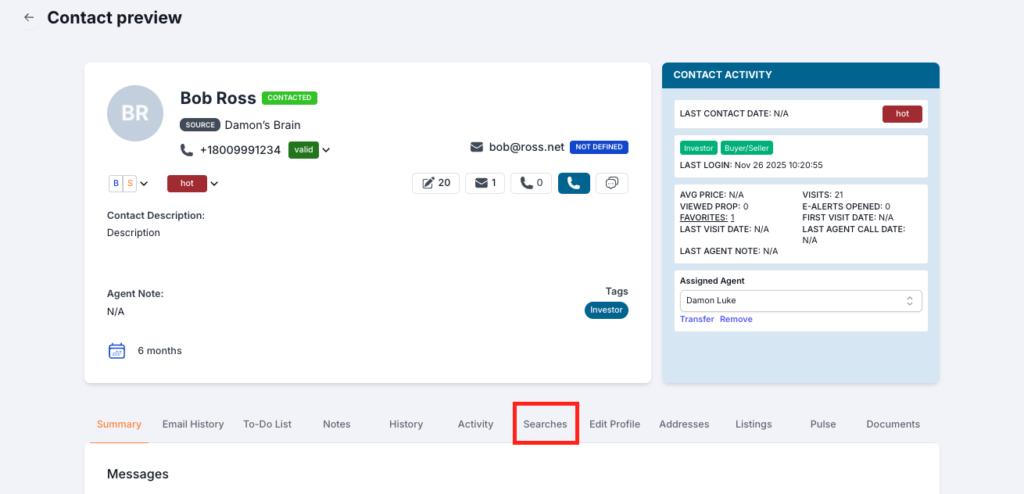
When clicking on ‘Searches’, you’ll see a link — ‘Create E-Alert’. Click on this link to open the E-Alert creation screen.

When the screen opens, give the search a name and then begin selecting the filters you want. Here are some tips to keep in mind when creating E-Alerts:
Frequency — How quickly you want your contact to receive an alert. Immediately likely will have a single property within the alert, whereas weekly will contain all properties from the previous week within the alert.
Specificity — There is a common desire to be very specific with the filters you select for an E-Alert. We strongly caution you to cast a wider net that may include properties just outside the desired parameters. There are countless stories of clients closing on a property that they would never have seen if the E-Alert parameters were strict.
MLS Fields — There are approximately 500 different MLS organizations across the country (give or take) and most are unique in what data they provide and how they provide it. We work with aggregation partners to provide the best data possible, but even then there are times when an MLS changes something and causes data to break or disappear. RealHub365 does its best to mitigate against this, but in certain instances, it’s outside of our control.
If data that you rely on has disappeared, or a field is no longer populating the data, it may very well be that your MLS has stopped sharing it (even though they still display it on their site). Should this be the case, we encourage you as a member of the MLS to request that the data be shared again so you can have it.
And / Or — Some fields have a hierarchy. For instance, if you select ‘LAND’, a number of results will be produced. If you then select ‘CABIN’, you will get zero results. This has to do with the logic behind a hierarchical structure — there are sets of filter data, and then subsets of data that nest below the top set. Some filters can be combined, some cannot. So, if you are selecting filters and your property matches dive to zero, consider that you have selected filter options that are in opposition to each other.
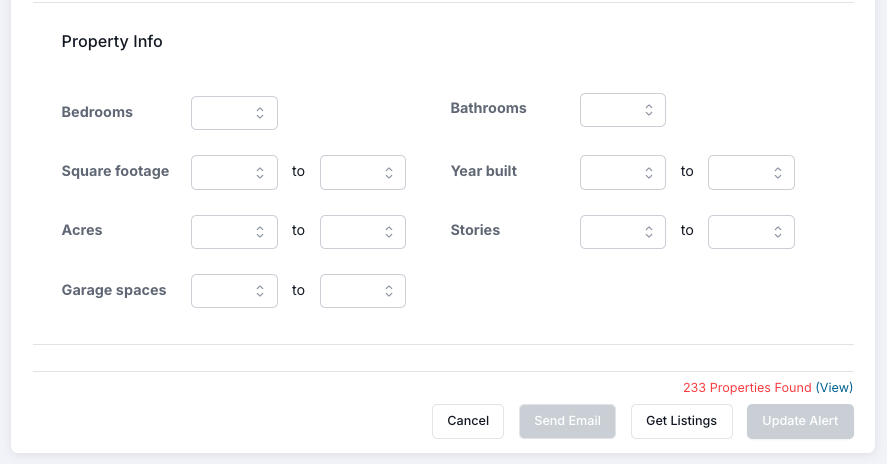
Get Listings — When you are creating an E-Alert and select filter criteria, you can click the button at the bottom to discover how many properties match the selected criteria. Keep in mind that the higher the number of matches, the more alerts your contact will receive.
By selecting (View) next to the properties found, you will be taken to your website to see the list of all properties found and be able to preview them yourself.
Send Email — Another button at the bottom of the E-Alert page is ‘Send Email’. This button will become clickable once you’ve selected the ‘Get Listings’ button. The purpose of the ‘Send Email’ button is to allow you to email the list of currently matching properties to your client. This is a manual email you can send.
Create Alert — The last button you’ll select on this screen is the ‘Create Alert’ button. You must click the ‘Get Listings’ button before this will turn blue and then you can create this as a new e-alert. All new property matches from this point forward will be sent automatically to your client at the frequency you’ve selected.
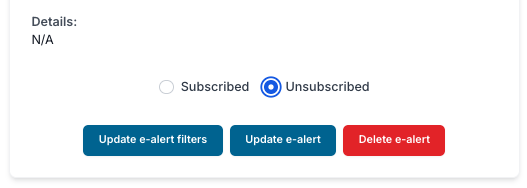
Your RealHub365 website is equipped with the ability for your visitors to refine their searches and then save those searches to come back to later on. In addition to the saved searches, your visitors can use the same filtered searches to create their own e-alerts.

In addition to the E-Alert options above, the proprietary AI system within your website (“Lucy”) will create an E-Alert based on the search patterns of your visitor. There are certain parameters that must be met, but when they are, our AI will capture that search behavior and send alerts to your visitor so that they are informed of property matches that you, the agent, may be unaware of. These AI-created alerts will have a distinctive name to separate them from those that you, or the visitor, have created.