It’s important that you set up your personal items in your profile at your earliest opportunity to make sure you’re ready to start communicating with your contacts and clients when the platform goes live. This section represents who you are and what you can do for your clients!
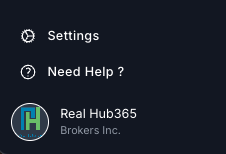
Once logged in, click on your profile image link in the lower left corner.
Build a Professional Website That Works for You
Your RealHub365 Profile is the foundation of your personal website, marketing, emails, lead generation, and AI visibility.
Think of this page as your digital business card combined with your personal brand. Every field you complete helps create a more professional experience for buyers and sellers while improving your visibility across search engines and AI-powered search.
Most agents can complete their profile in less than 20 minutes.
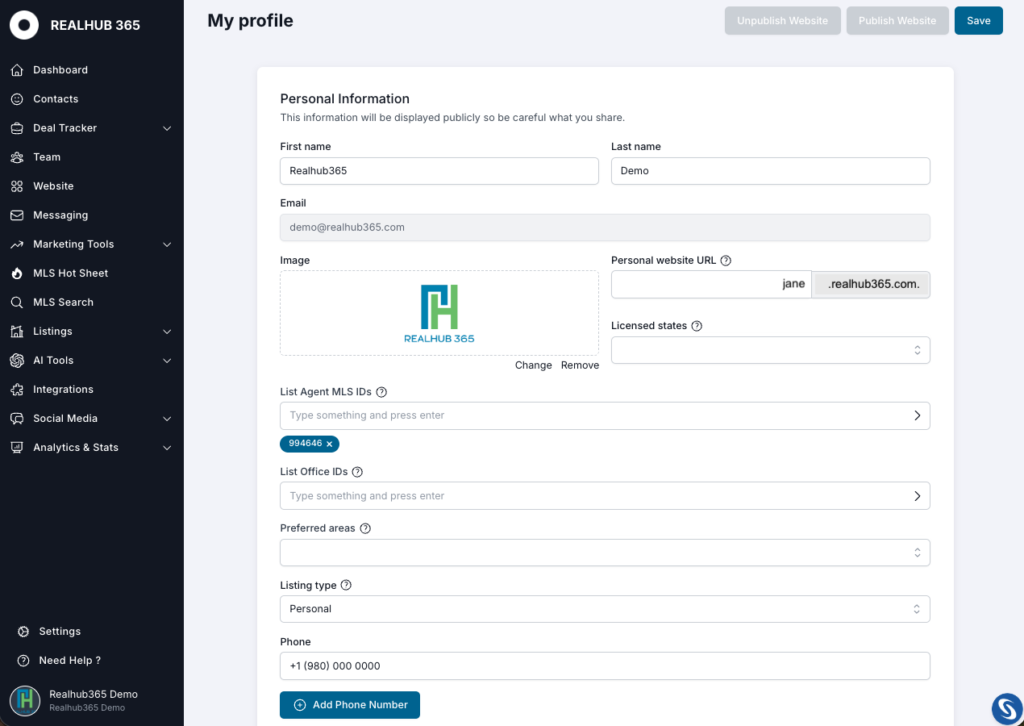
Upload a high-quality professional headshot.
Your profile photo appears throughout your website, marketing materials, email communications, and other areas inside RealHub365.
A professional photo builds trust before a client ever speaks with you.
Licensed States: Select every state where you currently hold an active real estate license. This helps RealHub365 properly organize your market information and display relevant content.
MLS ID: Enter every MLS ID associated with your real estate memberships. If you belong to multiple MLS systems, add each one separately by typing in the ID and clicking the arrow to the right.
Note: This is not your License #, but the ID that your MLS uses for you. If you can’t find this identifier, please contact your MLS for assistance.
List Office ID: If provided by your brokerage, enter your office identification numbers here in order to see and display office listings on your site.
Choose a simple website address that is easy to remember.
Examples:
jane.123realty.com
Keep it short and use your real name whenever possible. More detail about your personal website can be found in the Agent Subdomain Website section.
Preferred Areas determine what buyers can search directly from your website.
These locations populate your website’s search experience and help personalize listing results for your visitors.
Examples
Choose every market you actively serve.
Choose whether listings displayed on your website should come from your office or your individual listings.
Most agents leave this set to Office.
Enter your primary business phone number.
This number appears throughout your website and marketing materials.
Always use the number you answer most often.
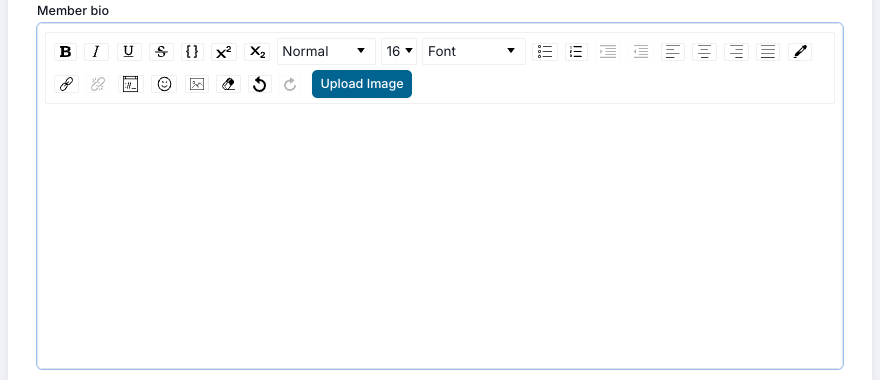
Create a bio, or copy and paste one used elsewhere, into the Member Bio section. This bio will be displayed on your personal site, as well as the main company website. We recommend using the same bio (word for word) on your site as you do on major sites like realtor.com, zillow.com and others.
Your biography does much more than introduce yourself.
It helps search engines and AI platforms understand:
A strong bio improves your visibility across Google, ChatGPT, Gemini, Claude, Perplexity, and other AI-powered search engines.
Instead of simply saying:
“I help people buy homes.”
Write something like:
“I specialize in luxury homes along Florida’s Scenic Highway 30A including WaterColor, Rosemary Beach, Alys Beach, Seagrove Beach, and WaterSound. I help buyers understand the differences between each community so they can make confident long-term investment decisions.”
The more specific your expertise, the stronger your online authority becomes.
Every email sent from RealHub365 includes your email signature.
Your signature should include
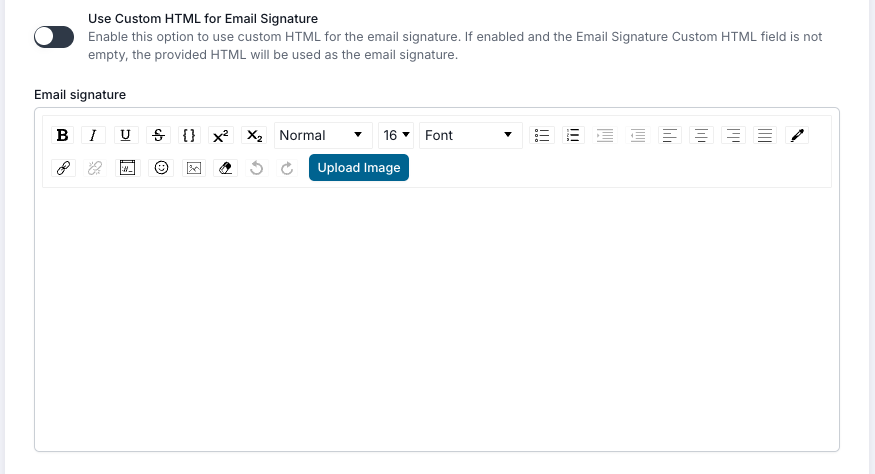
A professional signature reinforces your brand with every email you send. Next, create a new email signature that will attach to all templates and email communications. There are two ways of creating your email signature:
Option 1: Manually enter the information and apply formatting to the text.
Option 2: Enter HTML. AT THIS POINT, CLICK OR TAP “SAVE” IN THE UPPER RIGHT CORNER. To do this, copy your existing signature and enter the prompt “convert this email signature into HTML” into ChatGPT in AI Tools and hit Enter. Then, paste the signature into ChatGPT and hit Enter. You’ll be provided with HTML code that you’ll copy and paste back into the Email Signature field.
Download your personal QR code and use it on:
Clients can instantly access a contact form on your personal website by scanning the code.
Topic Sources help RealHub365 suggest timely blog ideas based on your local market.
Instead of generic national content, the system can recommend articles inspired by trusted local news and industry websites.
Examples include
Adding local sources helps generate more geo-targeted content that builds authority within your market.
The better your sources, the more relevant your blog suggestions become.
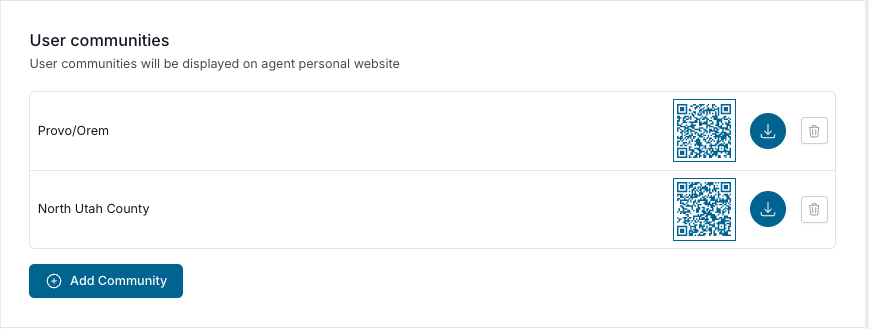
Communities are featured directly on your website.
These become dedicated neighborhood pages where visitors can learn about each area.
Examples
Choose every community you actively serve. If a community is missing, ask your team’s admin to add more.
These pages help establish local expertise and improve SEO for neighborhood searches.
Select the Communities you serve from those available in the list. This will present a filter option in the properties search bar on the left side drop down where a visitor can filter the inventory to only show properties within the communities you’ve chosen.

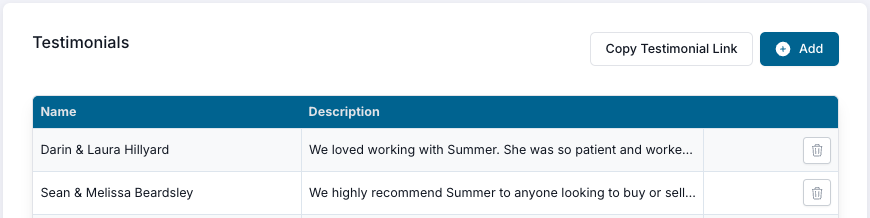
Nothing builds trust faster than reviews from past clients.
Add your best testimonials so they appear on your website.
You can also use the Testimonial Link to request reviews from clients after closing.
Aim to continually collect new reviews throughout the year.
Momentum 365 is your personalized morning briefing.
Each day you’ll receive a summary of important activity from the previous 24 hours, including:
Instead of logging into multiple systems, you’ll know exactly where to focus your day before you even open your CRM.
Highlight your best properties.
Featured Listings appear prominently throughout your personal website and showcase listings you want visitors to notice first.
Use this section for:
Keeping Featured Listings updated gives visitors a reason to return to your website regularly.
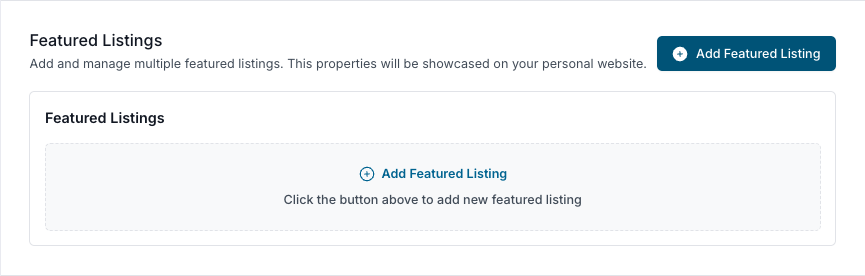
Click to add a Featured Listing. Enter the MLS number of your listing and select ‘Get Listing’ and let the system pull the data for you. Then, give it a catchy title and select the image you want shown. You’re all set! Repeat the process for additional featured listings as you desire.
If you don’t want to select a listing yourself, leave the fields empty and it will default to the Featured Listing selected by your admin for the main company page.
Connect your Instagram content directly to your website.
Sharing market updates, community photos, new listings, and local lifestyle content helps keep your website fresh while showcasing your personality and expertise.
At the bottom, you can change your own password, see your virtual number for text messaging and phone calls within the platform (including the mobile app).
Agents who fully complete their profile create a far more professional online presence than those who leave information blank.
Your profile powers:
Spend a few minutes completing every section today, and you’ll create a polished online presence that works for your business 24 hours a day.
IMPORTANT: When finished, scroll to the top to save all changes. Then, if using a personal subdomain site, click or tap “Publish”.